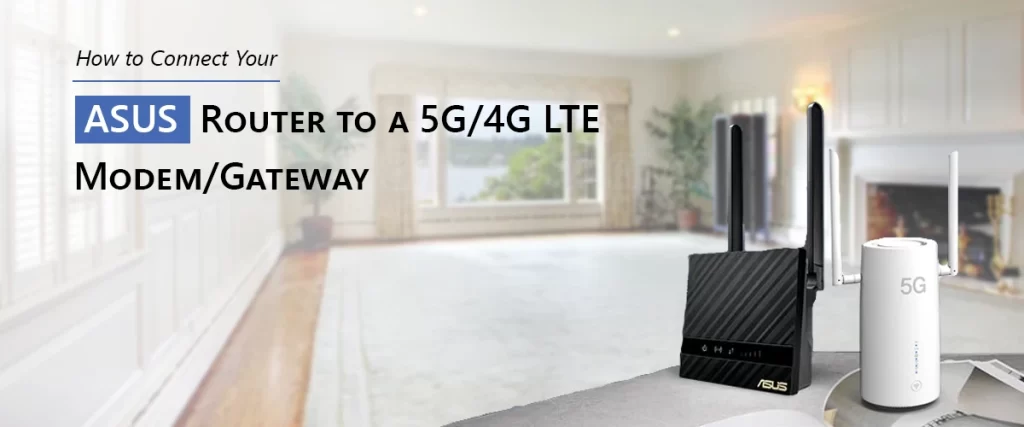
With the proliferation of high-speed mobile broadband, many customers rely on 5G or 4G LTE gateways for home or business internet connection. While these gateways frequently include built-in Wi-Fi, their wireless performance, coverage, and customization possibilities are usually restricted when compared to a dedicated ASUS router. Fortunately, you can combine the best features of both by connect asus router to 5G/4G LTE modem/gateway for a more reliable, secure, and robust network.
This article will take you through the whole setup procedure, including physical connections, router configuration, and critical options like Bridge Mode and Wireless Router Mode. Whether you’re looking to improve coverage, resolve network difficulties, or upgrade your home network, the procedures outlined here will help you get things functioning smoothly.
Why Should I Connect Asus Router To 5G/4G LTE Modem/Gateway?
Many LTE gateways are primarily intended for simple plug-and-play connectivity. Although handy, this sometimes results in restricted Wi-Fi functionality, weaker antennae, or fewer setup options. In contrast, ASUS routers offer:
- Improved range and wireless performance
- Advanced features include AiProtection, QoS, and VPN support.
- Additional Ethernet ports for wired devices.
- Customization and sophisticated security settings.
- Combining the two devices provides you with fast mobile broadband as well as ASUS’ outstanding networking power.
The Process To Connect Asus Router To 5G/4G LTE Modem/Gateway
1. Make the physical connection.
This is the significant aspect of the setup. To connect an ASUS router to a 5G/4G LTE modem or gateway, follow these steps:
- Locate the LAN port of your 5G/4G LTE modem or gateway.
- Locate the WAN (Internet) port on your ASUS router.
- Connect LAN to WAN with a normal Ethernet wire.
This concludes the physical setup. If everything went well, the ASUS router should now be able to connect to the LTE device.
2. Log in to the ASUS Router Interface.
- To change any configuration settings, you must first enter the router dashboard.
- Connect your computer or phone to the ASUS router (by WiFi or Ethernet).
- Launch a web browser.
- Type router.asus.com or 192.168.1.1.
- Execute Asus router login with your admin username and keyword.
- Once signed in, you may change operational modes and network settings.
3. Set the ASUS Router to Wireless Router Mode.
Most ASUS routers may operate in many modes, including Repeater Mode, Access Point Mode, and Media Bridge Mode.
The right choice to connect asus router to 5G/4G LTE modem/gateway is:
Wireless Router Mode (default)
To check or modify this:
- Navigate to Administration in the ASUS interface.
- Select the Operation Mode tab.
- Select the Wireless Router Mode.
- Save and restart if requested.
- This guarantees that the ASUS router runs your internal network properly.
4: Configure the LTE Gateway—Consider Using Bridge Mode
One of the most crucial considerations made during configuration is whether the 5G/4G LTE gateway should run normally or in Bridge Mode.
If both your ASUS router and LTE gateway conduct NAT (Network Address Translation), you may have Double NAT, which can create problems with:
- Gaming consoles
- Port forwarding
- VPN connections
- Remote access.
- Bridge mode is the solution.
When the LTE device is set in bridge mode:
- The ASUS router becomes the sole device that performs NAT.
- The ASUS router obtains the public IP address
- Network performance and compatibility improve.
Check the settings of your LTE modem/gateway to activate Bridge Mode (the names vary by manufacturer). If your LTE device does not support Bridge Mode, you may frequently accomplish comparable effects by:
- DMZ Mode
- IP Passthrough
- Modem-only mode (for some carriers)
5: Test your internet connection.
Once everything is configured:
- Restart both the ASUS router and the LTE modem/gateway.
- reconnect your devices to the ASUS network.
- To test the connection, visit a few websites or run a speed test.
If your asus router not connecting to internet, double-check:
- Ethernet cable connectors.
- WAN configuration (Automatic IP is suggested)
- Gateway Bridge Mode Settings
- SIM card and signal condition of the LTE gadget.
Final Thoughts
Combining or to connect asus router to 5G/4G LTE modem/gateway is one of the most effective methods to boost network speed and reliability. Simply connecting the LTE modem’s LAN port to the ASUS router’s WAN port, enabling Wireless Router Mode on the ASUS device, and utilizing Bridge Mode on the LTE gateway (if applicable) will provide you with stronger Wi-Fi, greater control, and a more reliable internet experience.
This option is suitable for those who use mobile broadband as their primary connection or who want a reliable backup internet solution. With the proper settings, your ASUS router can maximize the performance of your 5G or 4G LTE connection.
FAQs
What is “Double NAT” and why is it a problem?
Double NAT occurs when two routers conduct NAT concurrently. It can cause problems with gaming, VPNs, port forwarding, and remote access since devices are unable to receive appropriate external connections.
Can I use a USB port on the ASUS router to connect a 4G/5G USB dongle?
Yes, many ASUS routers support 4G/5G USB dongles via USB ports. Compatibility varies by model, so check ASUS’s approved modem list to confirm your dongle is working correctly.
What is Dual WAN, and is it useful for this setup?
Dual WAN allows you to connect to two internet sources at the same time, providing load balancing and failover capabilities. It’s useful if you want to utilize your 4G/5G LTE gateway as a backup or combine connections to improve stability.
Why is my internet speed slower when connected to the ASUS router than directly to the 4G/5G gateway?
Speed may be reduced due to Double NAT, poor Wi-Fi, obsolete firmware, wrong WAN settings, or the gateway not being in Bridge Mode. Router location and interference have an influence on performance.
How do I fix Double NAT?
Set Bridge Mode, IP Passthrough, or DMZ on the 4G/5G gateway. Alternatively, configure the ASUS router in Access Point Mode so that only one device accomplishes NAT at a time.