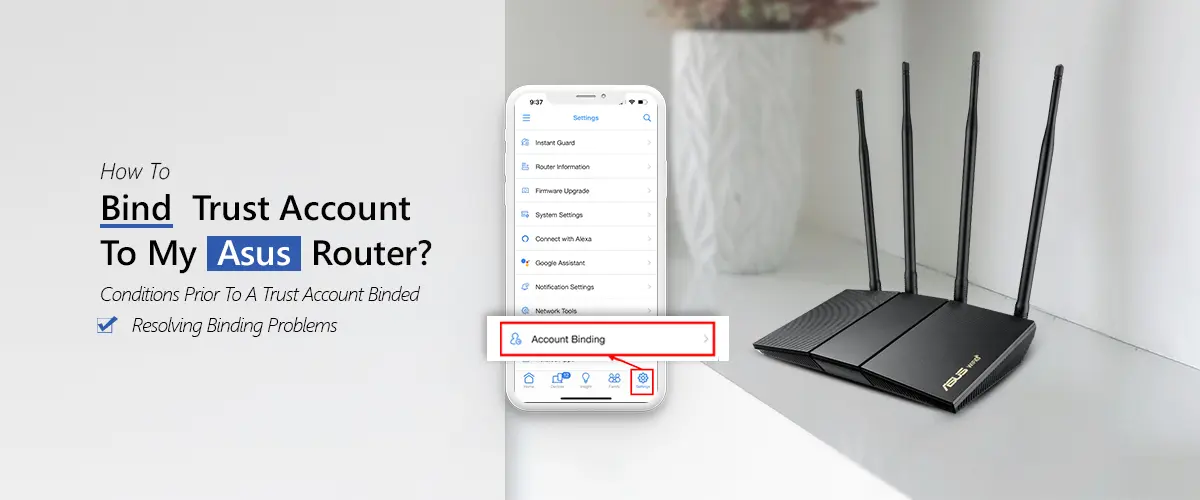
Quick answer: To bind a trust account to your ASUS router, open the ASUS Router App, go to Settings > Account Binding, choose your account and sign in. The feature is designed for supported routers and current firmware.
Trying to bind an account to your ASUS router but cannot find the setting?
The confusing part is that ASUS does not put Account Binding in the usual router login page. If you open 192.168.1.1, you may find plenty of network settings, but you will not find the Account Binding option there.
For this task, use the ASUS Router App.
ASUS calls the feature Account Binding. It links your router profile with a supported account, such as an ASUS ID or another account shown in your app. This can be useful when you change phones because you can sign in with the same account and access the router profile associated with it.
One thing to keep in mind: ASUS router menus can vary by model, firmware, region and app version. If your screen looks to some extent different, look for Account Binding rather than relying on an identical menu layout.
What Is a Trust Account on an ASUS Router?
A trust account is an account that you use to bind or link your ASUS router profile through the ASUS Router App. In simple words, it creates a connection between your router and a supported login account.
For example, imagine that you manage your ASUS router from your Android phone. Later, you buy a new phone. Without account binding, you may need to connect to the router again and add the router profile manually.
With account binding, you can sign in with the same bound account on the new phone. Your bound router profile can then be available in the ASUS Router App.
ASUS describes this feature as Account Binding. It can also help when moving to another handheld device and can support voice assistant features through the app.
Account Binding vs Router Login
These two things are easy to confuse.
| Feature | What it does |
| Router admin login | Lets you manage router settings |
| ASUS Router App | Lets you manage supported routers from your phone |
| ASUS ID | An ASUS account used for supported ASUS services |
| Trust account | A supported account used for Account Binding |
| Account Binding | Links the router profile with the selected account |
| ASUS DDNS | Provides a hostname for supported remote-access use |
Your router’s administrator username and password are not the same thing as your trust account.
Benefits of Binding a Trust Account
Why should you bind an account to your ASUS router?
The answer be contingent on how you use your router. For a basic home user, you may not need the feature at all. But it can be useful if you manage your router from several phones or if you replace your phone regularly.
1. Easier access on another phone
Suppose you used your old phone to manage your router. You buy a new phone. Instead of starting from scratch, you can install the ASUS Router App and sign in with the same account that was previously bound to the router.
ASUS says users can use the same account to call up their bound router profiles on another handheld device.
2. Easier router profile management
Account binding can make it easier to keep track of multiple ASUS routers.
This is useful for people who have:
- A main home router
- A second router
- An AiMesh setup
- A replacement router
- More than one location
ASUS also supports managing multiple routers through the ASUS Router App on supported devices.
3. Useful when changing phones
This is one of the most applied reasons to use it.
For example:
I tested this after moving the ASUS Router App from an Android phone to an iPhone. The important part was using the same account that was originally bound to the router. The exact experience can vary by model, firmware, region and app version. Still, this is the main purpose of account binding.
4. Support for certain ASUS features
ASUS states that account binding can help enable voice assistant functionality through the router app. It can also be useful when working with ASUS DDNS and supported router-management features.
5. Better continuity
A router is usually a long-term device. Your phone may change. Your router may stay the same. Account Binding helps keep your router profile associated with the account you use, rather than depending only on one phone.
Before You Start — Requirements
Before you try to bind trust account to ASUS router, check these items.
| Requirement | What to check |
| ASUS router | It must support the feature |
| Router firmware | ASUS currently states firmware 3.0.0.4.386.52294 or later |
| ASUS Router App | Install the latest available version |
| Smartphone | Android or iPhone with the ASUS Router App |
| Internet connection | Make sure the router has a working connection |
| Supported account | Use a supported account type |
| ASUS DDNS | Required for the Account Binding feature according to ASUS |
| Login details | Keep your selected account credentials available |
ASUS’s current support documentation says the Account Binding feature is available from firmware 3.0.0.4.386.52294 and above. It also says the ASUS Router App should be up to date and that Account Binding supports ASUS DDNS, not third-party DDNS.
Which ASUS routers support the ASUS Router App?
ASUS supports the Router App across many router families. Its current support documentation lists families such as ZenWiFi, 802.11ax models, ROG Rapture, TUF Gaming and many RT-series models. However, support can be contingent on the exact model and firmware.
So, if you have an ASUS RT-AX, RT-AC, ROG Rapture, TUF Gaming, ZenWiFi or another ASUS model, do not assume that every feature is available just because the Router App itself is supported. Check your exact model and firmware.
How to Bind Trust Account to ASUS Router
There is an important correction here. You may see guides that suggest using both the ASUS Router App and the ASUS Web Interface for account binding. ASUS’s current documentation describes Trust Account/Account Binding as an ASUS Router App feature. It does not provide a Web GUI procedure for binding the trust account.
Method 1 — Using the ASUS Router App
Step 1: Connect your phone to the ASUS router
- First, connect your smartphone to the Wi-Fi network provided by your ASUS router.
- You can also use another supported connection method if your router is already configured for remote management.
- For initial setup, staying connected to the router’s Wi-Fi is usually the simplest approach.
Step 2: Open the ASUS Router App
Open the ASUS Router App on your Android phone or iPhone. If you do not have it, install it from your device’s official app store. Make sure the app is updated before continuing. An outdated app can cause missing menu options or login problems.
Step 3: Open Settings
After opening the app, find the router profile you want to manage.
Then open:
- Settings > Account Binding
ASUS’s current instructions use this path for account binding.
Step 4: Choose your account
You should see the available account options. Depending on your region and current ASUS support, supported options can include:
- Gmail
- ASUS ID
- Apple ID
Step 5: Sign in
Enter your account details and complete the login process. If the account uses an additional security check, complete it. Do not share your password or confirmation code with anyone.
Step 6: Confirm the binding
After successful login, ASUS says your account information should appear in the app. This indicates that the account binding has been completed.
Step 7: Remember which account you used
This small step can save you a lot of worry. Suppose you bind your router using one Gmail account and later try to log in with another account. The router profile may not appear.
ASUS specifically advises users to remember which account they used for binding because the same account may be needed to list the bound router profiles on another device.
What If You Are Using a New Phone?
This is where Account Binding can be particularly useful. Let’s say you have this situation:
- Old phone → ASUS Router App → Router bound to Account A
You buy a new phone. Install the ASUS Router App on the new phone and log in using Account A. If the router was successfully bound, the associated router profile can be retrieved through the account. ASUS says users can use different phones with the same social account.
Method 2 — Using the ASUS Web Interface
This method needs clarification. You can access your ASUS router through its Web GUI. Depending on the router and network configuration, you may use 192.168.1.1, another LAN IP address or an ASUS router URL. However, the Web Interface is not the supported method for Trust Account/Account Binding itself.
ASUS’s current documentation specifically says the Account Binding feature is applicable to the ASUS Router App and does not support the ASUS Router Web Settings Page for this function.
What can you do through the Web Interface?
You can use the Web GUI for tasks such as:
- Checking router settings
- Changing Wi-Fi settings
- Managing network options
- Checking firmware
- Configuring ASUS DDNS
- Managing connected devices
- Troubleshooting Internet access
- Changing router administrator credentials
So if you open 192.168.1.1 and cannot find an Account Binding option, that does not necessarily mean your router is broken. The option may simply not exist in the Web GUI.
App vs Web Interface
| Task | ASUS Router App | ASUS Web Interface |
| Trust Account binding | Yes | No |
| Account unbinding | Yes | No |
| Router profile management | Yes | Limited/different |
| Advanced router settings | Some | Yes |
| Firmware management | Supported functions | Yes |
| ASUS DDNS management | Yes | Yes |
| Local router administration | Yes | Yes |
| Remote app management | Supported models/settings | Depends on configuration |
ASUS Account Binding and ASUS DDNS
ASUS DDNS can be confusing because it sounds similar to account binding. They are not the same thing. Account Binding connects your supported account with your router profile. ASUS DDNS gives your router a hostname that can be used for supported remote-access functions.
ASUS currently states that Account Binding supports ASUS DDNS and does not support third-party DDNS for this feature.
For example:
| Feature | Purpose |
| ASUS ID | ASUS account |
| Trust account | Account used for Account Binding |
| Account Binding | Connects account and router profile |
| ASUS DDNS | Provides a hostname |
| Remote router management | Allows supported remote access |
| Web GUI | Router configuration interface |
If your goal is remote router management ASUS, do not assume that simply binding a social account automatically opens your router to the Internet. Remote access has its own settings and security requirements.
How to Unbind or Switch a Trust Account
You may want to remove the current account when:
- You sell the router.
- You give the router to another person.
- You want to use another account.
- You are changing the account used for management.
- You no longer want the router associated with the account.
ASUS provides an unbinding option in the Router App.
Step 1: Open the ASUS Router App
Open the app and locate the router profile you want to remove from the account.
Step 2: Open the router profile
Go to the router’s home page. Then tap the device icon.
Step 3: Open Settings
Tap the settings button in the upper-right corner.
Step 4: Select Unbind with Account
Tap: Unbind with Account
ASUS says the router should then move back to a local-device state. You can continue managing it locally or unlink it from the phone.
Important before switching accounts
Do not simply log out and assume that the router is now available for another account. If you want to bind the router to a different account, first unbind it from the current account. The same ASUS router cannot be bound to different social accounts at the same time.
Common Binding Errors and Fixes
Sometimes ASUS router trust account setup does not work on the first attempt. Here are the most common problems.
| Problem | Possible cause | What to do |
| Account Binding option missing | Unsupported model or firmware | Update firmware and check model support |
| Login fails | Wrong account credentials | Verify the selected account |
| Router does not appear | Wrong account | Use the account originally bound |
| Binding does not complete | Old app version | Update ASUS Router App |
| Remote access fails | Network or DDNS issue | Check ASUS DDNS and remote-access settings |
| Web GUI has no binding option | Normal behavior | Use the ASUS Router App |
| New phone shows no router | Different account | Sign in with the original bound account |
| Third-party DDNS does not work | Not supported for binding | Use ASUS DDNS |
1. Account Binding option is missing
First check the firmware. ASUS currently states that Account Binding requires firmware 3.0.0.4.386.52294 or later. Then update the ASUS Router App. Also check whether your exact router model supports the required feature.
2. You cannot log in with the account
Check that you selected the exact account. For example, if you originally used Gmail Account A, logging in with Gmail Account B will not show the same binding. This is one of the easiest mistakes to make.
3. Your router does not appear on your new phone
Ask yourself:
Did I use exactly the same account that was originally bound to the router?
If the answer is no, sign out and try the original account. ASUS explains that the account-binding system uses the binding record to retrieve router profiles.
4. You are trying to bind through 192.168.1.1
This is another common misunderstanding. So if you open ASUS router login 192.168.1.1 and cannot find Account Binding, use the app instead.
5. You use third-party DDNS
ASUS currently states that Account Binding supports ASUS DDNS and does not support third-party DDNS for this feature. If your setup depends on another DDNS provider, check whether that service is the reason the expected account-binding feature is unavailable.
6. Remote management is not working
Account Binding does not automatically solve every remote-access problem. If you cannot manage the router remotely, check:
- Internet connection.
- ASUS Router App status.
- ASUS DDNS status.
- Remote-management settings.
- Router firmware.
- App version.
- Account region.
- Network restrictions.
ASUS notes that region differences can also affect remote connection in some situations.
Is Binding a Trust Account Safe?
Yes, it can be a useful and reasonable feature when used correctly. But account binding does not mean you should ignore router security. Your router controls your home network. Protect it like any other important network device.
Use a strong router administrator password
Do not leave your router administrator credentials at an easy-to-guess value. Your router login password and your social account password should also be treated separately.
Protect the account you bind
If you bind an ASUS router to an ASUS ID, Apple ID, Google/Gmail account, Facebook account or another supported account, secure that account.
Use:
- A strong password
- Two-factor authentication when available
- A secure recovery email
- Updated phone security
- Screen lock on your phone
Keep the router firmware updated
Firmware updates can improve security, stability and feature compatibility. ASUS recommends keeping the firmware current for Account Binding. If the binding option is missing, checking the firmware should be one of your first troubleshooting steps.
Be careful when selling or giving away the router
Before handing the router to someone else, unbind your account. Then consider resetting the router to factory settings. This prevents your old configuration and account association from remaining with the device.
What About AiCloud or ASUS Cloud Account?
Another common question is whether ASUS Cloud Account, AiCloud, ASUS ID and Trust Account are exactly the same thing. They are not necessarily interchangeable terms.
ASUS has several cloud-related features and services. For this specific process, focus on Account Binding inside the ASUS Router App. Do not assume that logging into a cloud-related ASUS service automatically creates an Account Binding record.
If the app specifically shows Settings > Account Binding, use that menu.
Does Account Binding Work With AiMesh?
It can be useful in an AiMesh environment, specifically when you manage multiple ASUS routers through the Router App. However, do not confuse two different meanings of the word bind.
There is:
Account Binding — connecting a router profile to an account.
And there is:
AiMesh device binding — binding a client device to a particular AiMesh router or node.
They are different features. ASUS documents a separate AiMesh feature for binding a client device to a particular AiMesh node. So if you see the word “Bind” in an AiMesh menu, check the context before changing anything.
Useful ASUS Router Tasks After Account Binding
Once your router is properly set up, there are several other tasks you may want to complete.
| Task | Why it matters |
| ASUS router login | Access router settings |
| Update ASUS router firmware | Improve security and compatibility |
| Reset ASUS router | Restore factory settings when needed |
| Find default username/password | Useful during initial setup |
| Set up ASUS DDNS | Useful for supported remote access |
| Fix ASUS router Internet connection | Restore online access |
| Set up AiMesh | Extend Wi-Fi coverage |
For example, if your router is not connecting to the Internet, account binding is not normally the first thing to troubleshoot. Check the WAN cable, modem, ISP connection, WAN settings and router status first. Likewise, if you forgot the administrator password, use ASUS’s router-login recovery or reset guidance instead of repeatedly trying the Trust Account feature.
Frequently Asked Questions
Can the same ASUS router be bound to different ocial accounts?
No. ASUS states that the same ASUS router can be bound to only one social account at a time. If you want to use another account, first unbind the router from the existing account. After that, you can perform the binding process again with the new supported account.
Can I log in to my social accounts on different mobile phones at the equivalent time?
Yes. ASUS states that users can log in and use the same social account on different phones. If the router was already bound, use the same account on the second phone so the associated router profile can be found.
Can’t I log in to manage ASUS Router App through social account binding?
If the router was never bound to that account, simply logging in may not show the router. ASUS says the account-binding system depends on an existing binding record. Make sure you are using the exact account that was originally linked to the router.
How do I get the Utility or Firmware?
Use the official ASUS Download Center for your router model. Search for the exact model and download the appropriate firmware, utilities, manuals or software. Before updating firmware, verify the model carefully and follow ASUS’s instructions for your specific device.
Do I need an ASUS account to use my router?
No. You can use an ASUS router without necessarily using Trust Account binding. Basic router setup and local management can normally be performed through the router’s supported management methods. Account Binding is an additional feature for supported models and app-based management.
What happens if I don’t bind a trust account?
Your router can still work normally if you do not use Account Binding. The feature is mainly useful for linking a supported account with the router profile, using the profile across phones and supporting certain app features. It is not required for ordinary Wi-Fi use.
Can I bind a trust account without the ASUS Router App?
For the current ASUS implementation, no. The Web GUI is used for many router settings, but ASUS says Account Binding is not supported through the Router Web Settings Page.
Final Thoughts
The answer to “How To Bind Trust Account To My ASUS Router?” is simple: use the ASUS Router App. Open the app, go to Settings > Account Binding, choose your supported account and sign in. The most important thing to remember is that Trust Account binding is not the same as logging in to 192.168.1.1. It is also not the same as ASUS DDNS or AiMesh client binding.